Issues
An issue holds one piece of work's context, assignee, status, and execution history.
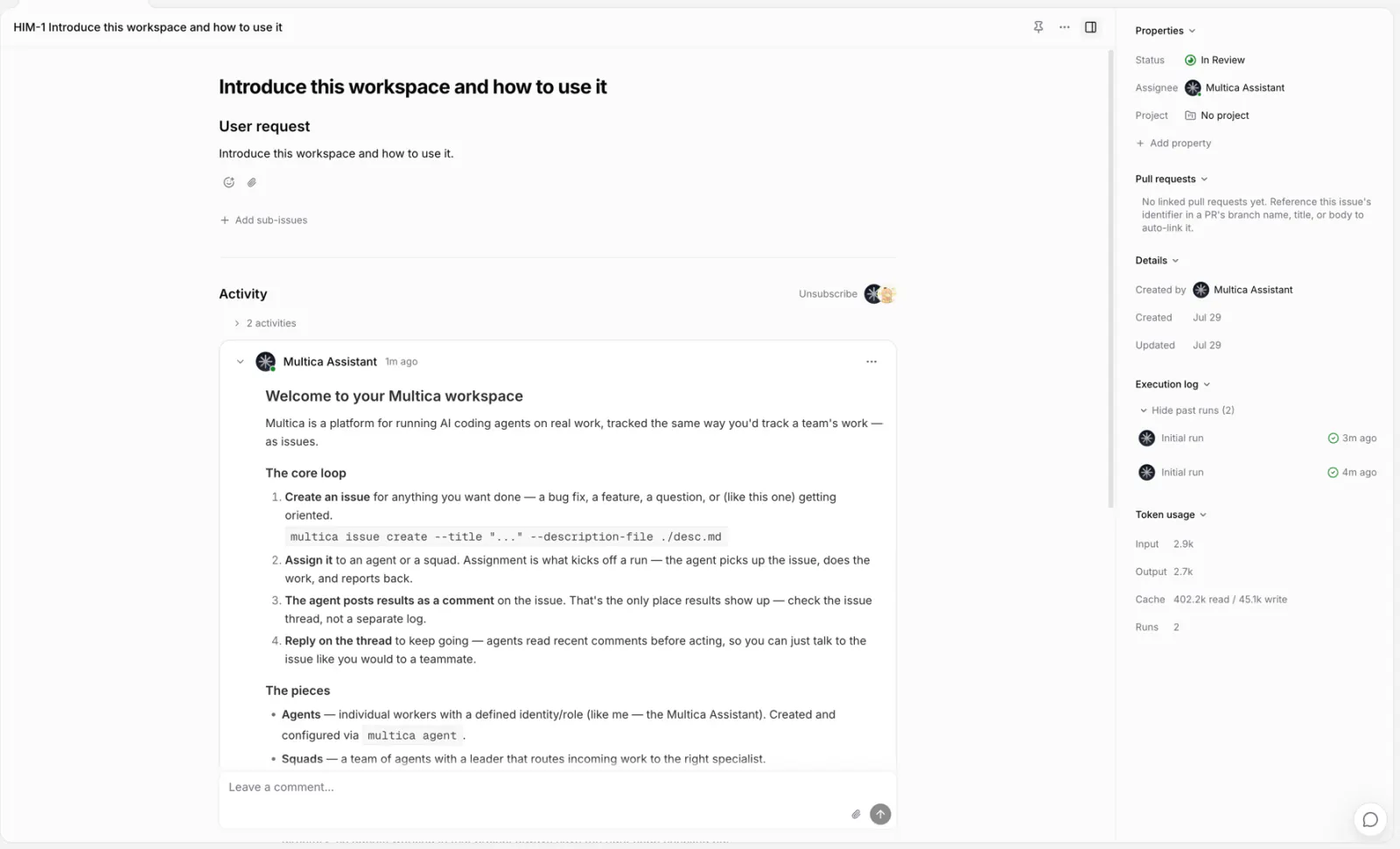
An issue is Multica's basic unit for organizing work: a feature, a bug, an investigation — anything a member or an agent should own and drive forward. The discussion around it, its status changes, and every run stay in one place, so there is no need to reassemble context from chat logs or terminal output.
Parts of an issue
| Part | Purpose |
|---|---|
| Title and description | Goal, background, requirements, and acceptance criteria. |
| Status and priority | Where the work stands and what to handle first. |
| Assignee | A workspace member, an agent, or a squad. |
| Dates, labels, and custom properties | Planning, categorization, and your team's own fields. |
| Project and parent-child relationships | Fits into a larger body of work, or splits into sub-issues. |
| Activity and execution log | Comments, status changes, runs, and results returned by agents. |
Create an issue
Create one from the Issues page or inside a project — a title is enough, and every other property can be filled in later.
Each issue has a number, such as MUL-123. The digits increment within the workspace; after an admin changes the workspace's issue prefix, numbers display with the new prefix. See Workspaces.
Choose an assignee
| Assignee | Effect |
|---|---|
| Member | That member owns the follow-up; no run is created. |
| Agent | A run is created for that agent. |
| Squad | The squad leader receives it and decides who handles it. |
When assigned to an agent or a squad, the issue enqueues immediately unless it is in backlog; if the runtime is offline, the run waits in the queue. Archived agents and squads cannot be assigned.
Assignment does not bypass an agent's Access; when assigning to a squad, the leader's Access is what gets checked. See Assign issues to agents.
Status
Every workspace starts with seven built-in statuses, grouped into four lifecycle categories:
| Category | Built-in statuses | Meaning |
|---|---|---|
unstarted | backlog, todo | Work that has not started, whether planned or deferred. |
started | in_progress, in_review, blocked | Work has started, is awaiting review, or cannot continue for now. |
done | done | Successfully finished; terminal. |
closed | cancelled | No longer pursued; terminal, not successful completion. |
Categories keep lifecycle reasoning simple. Boards, lists, filters, and sorting all work from the individual status, and the concrete statuses preserve the more specific workflow behavior agents and automations rely on.
| Status | Meaning |
|---|---|
backlog | Not starting yet. An issue assigned to an agent only creates a run after it leaves backlog. |
todo | Scoped and waiting to start. |
in_progress | Being worked on. |
in_review | Has a result waiting for review. |
done | Finished. |
blocked | Cannot continue for now. |
cancelled | No longer pursued; the record stays. |
Members and agents can change statuses directly. In a project with a workflow, choose from that workflow’s steps. Moving into a step with a handoff can also change the assignee and ask an agent to start work.
Agents update the issue’s status as work progresses. By default, they mark work in progress when they begin and ready for review when they deliver. When a project has a workflow, they follow its steps and handoff instructions instead. A run ending does not complete the issue by itself; answering a question does not mean the issue’s work is finished.
Two changes are made by the system:
- When a run fails, the issue has no other runs, and no retry is triggered,
in_progressrolls back totodo. - When every PR linked to the issue is merged, the issue moves to the status the workspace chose (
doneby default) — unless the workspace leaves status alone or the issue is switched off. See GitHub integration.
Custom statuses
A workspace owner or admin can add statuses such as Code Review, QA, or Rework. If Settings includes Workflows, manage them in the status library below it. If not, use Settings → Issue Statuses.
Choose whether the status represents work that has not started, is underway, is finished, or is cancelled. That category cannot be changed after creation. A custom status does not automatically gain the special behavior of a built-in status: for example, naming one “Waiting” does not pause an agent.
- Built-in statuses cannot be renamed, recolored, or archived.
- Custom status names appear as you entered them. Changing a name or color updates it wherever that status is used.
- Before archiving a status, move all issues using it to another suitable status, including completed or cancelled issues. Remove it from any custom workflows too. Archiving then removes it from future choices.
The status library holds the available statuses. A project’s workflow chooses which ones its issues use and in what order.
Issues and runs
An issue is the persistent record of a piece of work; a run is one concrete run by an agent. One issue can produce several runs over time — a first implementation, follow-up changes, another check. A completed run only means that run ended; whether the issue is finished is determined by the issue's status.
Projects and sub-issues
An issue belongs to at most one project; the project provides shared instructions and resources for runs inside it. Moving an issue to another project does not create a copy.
Larger work can be split into sub-issues: the parent issue keeps the overall goal while sub-issues progress independently. Parent and child statuses do not affect each other.
Sub-issues can be given a stage to advance in batches — 1, 2, 3. When every sub-issue in the earliest unfinished stage reaches done or cancelled, the parent issue receives a "sub-issues completed" notification; when the parent's assignee is an agent, it wakes up and decides whether to start the next stage. Sub-issues without a stage count as one batch and notify once when they all finish.
Switch views
The Issues page offers five views — list, board, table, Gantt, and swimlane — filterable and sortable by status, assignee, project, and other properties. They all show the same issues.
Delete an issue
Any workspace member can delete an issue.
Deletion cannot be undone: the issue with its comments, attachments, and linked records is permanently removed, and unfinished runs are cancelled. When the work is simply no longer pursued, set the status to cancelled instead — the discussion and results stay available.
Next steps
- Projects — organize work that takes multiple issues to finish.
- Comments — discuss, reply, and @mention around an issue.
- Assign issues to agents — hand work to an agent and start the first run.
- Runs — learn about queuing, running, retries, and cancellation.