WeChat Bot
Scan a QR code to connect your WeChat account to a Multica agent through iLink.
Multica connects to WeChat's iLink Bot service using the protocol implemented by Tencent's OpenClaw Weixin plugin. This is a separate channel from WeCom. You do not need to install OpenClaw or run a desktop WeChat automation tool.
Connect
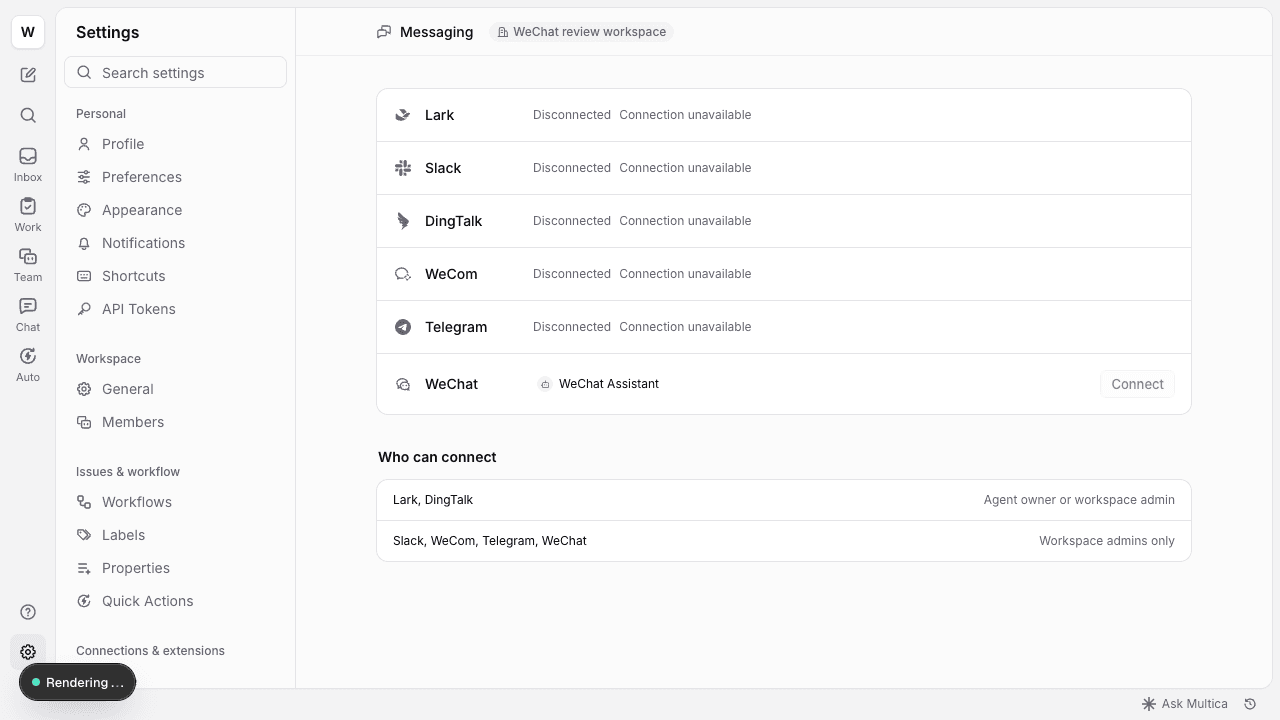
- Sign in as a workspace owner or admin. Open an agent, choose Add messaging channel under Messaging, select WeChat, then select Connect WeChat.
- Scan the QR code with your own WeChat account and confirm on your phone. If WeChat requests a numeric verification code, enter it in the dialog.
- Send a new private message to the bot in WeChat. The agent needs an online runtime to execute work.
The account that scans is linked to the Multica user who opened this dialog. Its messages execute with that user's workspace permissions. Do not share the QR code or ask someone else to scan it. Other WeChat accounts and group messages are not accepted.
The login window lasts at most five minutes; the provider can expire a code sooner. Generate a new QR code after expiry. Closing the dialog cancels the pending login. A bot already connected to another agent or workspace must be disconnected there first. WeChat controls account eligibility and may refuse or challenge a connection.
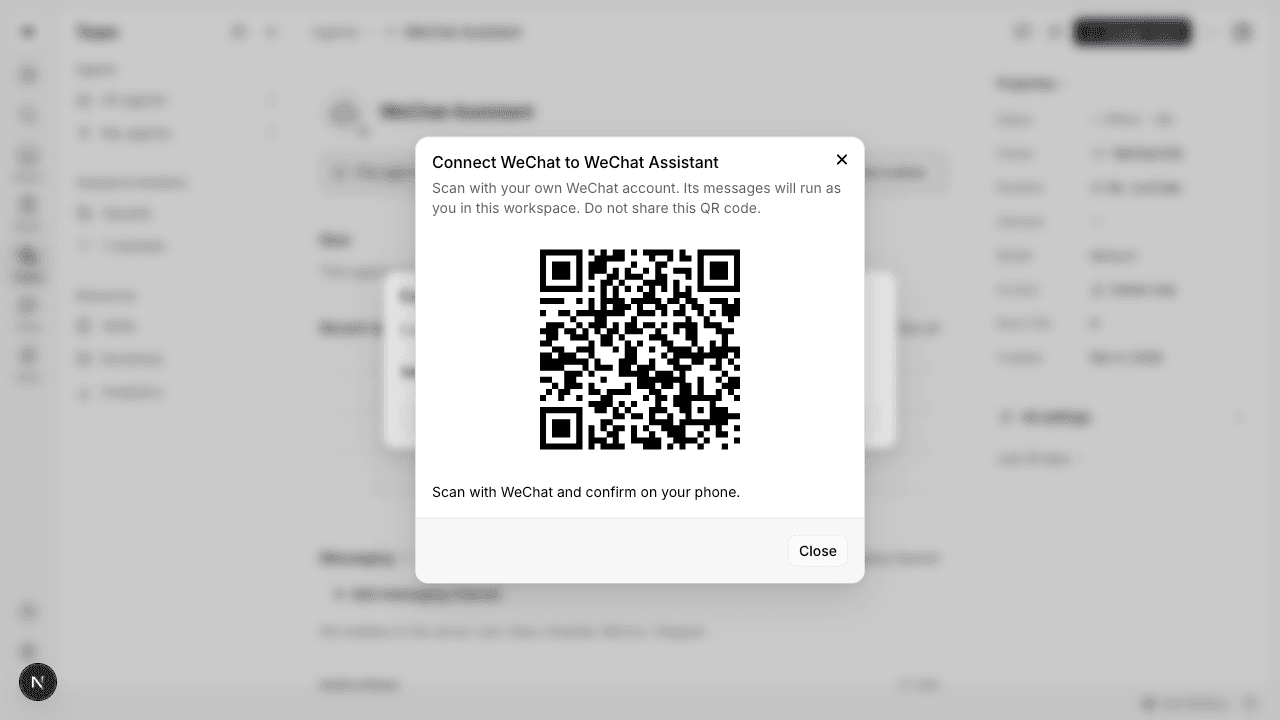
The QR code in this illustration is a test fixture, not a live authorization code.
Messages and commands
- Text messages continue the same Multica chat. Final answers return to WeChat in plain text; long answers are split into Unicode-safe messages. There is no streaming message editing.
- While the agent works, Multica renews WeChat's typing indicator when available. It stops after completion, failure, or cancellation. A failed renewal is retried at the next five-second interval. Missing typing permission or a failed indicator request does not interrupt messages or replies.
/new [message]starts a new Multica chat./clear [message]resets agent-visible context in the current chat./issue <title>creates an issue assigned to the connected agent.- With object storage configured, incoming images, files, video, and untranscribed voice notes are attached to the Multica chat. Voice transcription supplied by WeChat is used as text; Multica does not add a speech-to-text service or convert SILK audio.
- Files attached to an agent's final answer return to WeChat. Supported images and MP4 video use native media messages; other formats, including audio, use file messages. Each transfer is limited to 20 MiB by this adapter. A failed outgoing file transfer produces a notice; the file remains in Multica.
- Group chats, contact access, proactive notifications, forwarded-message expansion, and fetching quoted-message history are not supported.
Replies require the context credential issued by WeChat for this conversation. If a reply is rejected because its context has expired, send a new message. Multica does not assume a fixed context lifetime. A successful API response means provider acceptance, not proof of delivery or reading. If a send response is lost, Multica records an unknown outcome and does not resend it automatically.
Under heavy load, a WeChat reply notification may be skipped; the answer remains available in the Multica chat.
Disconnect
Use Manage WeChat → Disconnect in the agent's Messaging section. New messages stop reaching the agent and the saved reply context is removed. Multica chat history remains available. An explicit iLink authorization-expired response also disables the connection and shows an expired-authorization notice; reconnect by scanning a new QR code. Reauthorizing an existing connection to the same agent preserves its chat and receive cursor. When a bot is already connected to another agent in this workspace, the connection dialog names that agent so you can disconnect it there first; other workspaces' agent identities remain private.
Self-hosting
Generate a persistent encryption key:
openssl rand -base64 32Store it as MULTICA_WEIXIN_SECRET_KEY on the API server and restart the server. Use the same key on every replica. Keep it with your deployment secrets and backups; changing it prevents existing credentials from being decrypted and requires reconnecting the bots. Without this key, connection controls are disabled. Docker Compose passes this variable through.
The API server needs outbound HTTPS access to ilinkai.weixin.qq.com, WeChat's returned *.weixin.qq.com regional hosts, and novac2c.cdn.weixin.qq.com. No public webhook or inbound tunnel is needed. Browser clients receive only the QR display content and status; bot credentials and reply context are encrypted at rest on the server.
Apply the normal database migrations. The shared channel supervisor owns one long poll per installation across replicas, and the update cursor is saved after the shared inbound engine accepts a batch. Final replies use the shared database delivery lease to avoid duplicate sends. Pending outbound events are in memory: a server restart can interrupt a reply, and an ambiguous send is intentionally not replayed. The answer and attachments remain in Multica.
Protocol reference: Tencent @tencent-weixin/openclaw-weixin 2.4.10, source commit 874637a, including its protocol documentation. This adapter is a native Go implementation and has no runtime dependency on that package. Provider behavior and account eligibility can change independently of Multica releases.